
Download Fugu – Free Secure SFTP Client for macOS
Overview
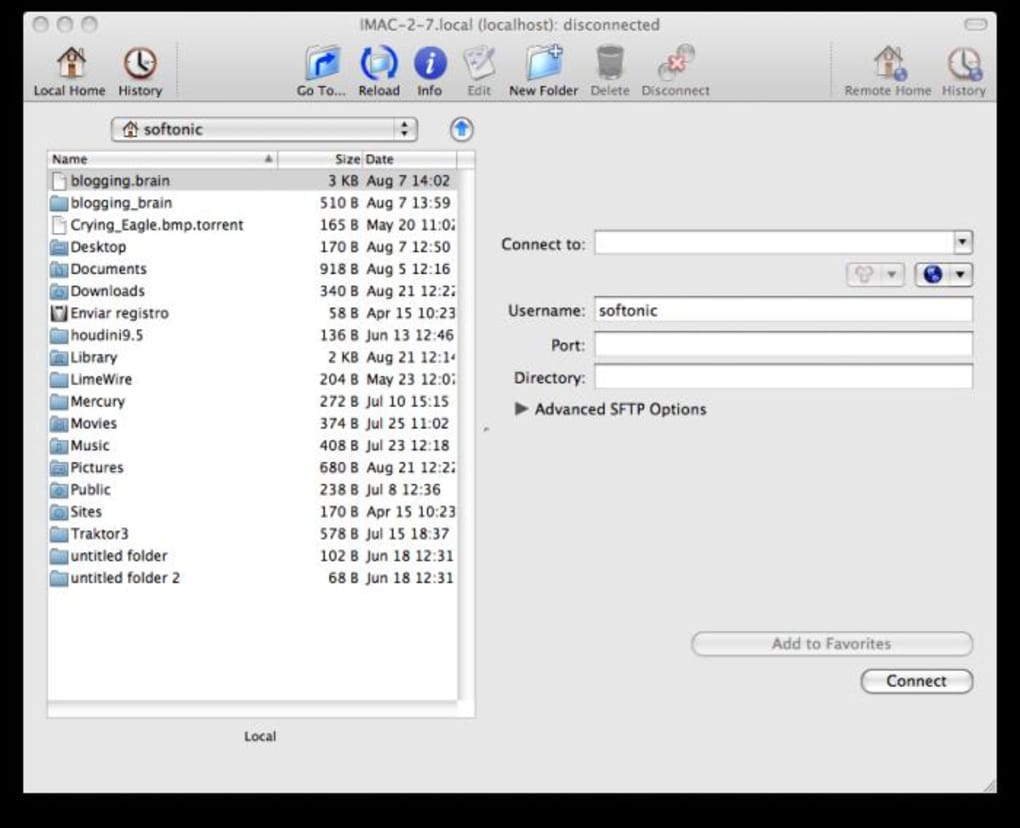
Fugu is a free, open‑source SFTP client built specifically for macOS. It wraps the power of the command‑line ssh, sftp and scp utilities in a simple graphical interface that feels familiar to anyone who has used classic FTP clients. Even though the UI is intentionally lightweight and a little “retro,” Fugu does not compromise on security.
Every file transfer is encrypted, and the app integrates tightly with macOS Keychain, allowing you to store passwords, private keys, and even create SSH tunnels without leaving the application. Whether you need to drag‑and‑drop a single file, upload an entire directory, or edit a remote file in your favorite editor, Fugu offers a reliable workflow that works entirely offline—no hidden cloud services or telemetry. Because the code is open source, you can audit the source or even compile your own build if you prefer a fully custom solution.
In short, Fugu gives you a trustworthy, cost‑free way to move files securely across servers, making it an attractive alternative to commercial SFTP tools.
Key Features, Compatibility & Security Highlights
Core Feature List
- Full support for SFTP, SCP and SSH protocols.
- Drag‑and‑drop file transfer with visual directory browsing.
- Directory upload and download, including recursive folder handling.
- Image preview directly inside the client.
- Public‑key authentication with seamless Keychain integration.
- Ability to create custom SSH tunnels for port forwarding.
- External editor support – edit remote files locally and save securely.
- Permission and ownership changes (chmod, chown) from within the UI.
- Connection to alternate ports and configurable timeout settings.
- History log of recent connections for quick re‑access.
Operating System Support
Fugu runs natively on macOS 10.12 (Sierra) and later, including Apple Silicon (M1/M2) Macs. Because the app is a thin wrapper around the system‑provided SSH binaries, it inherits the security updates and performance improvements of macOS itself. Users on older macOS versions can still install Fugu, but they should ensure their system SSH tools are up to date for optimal encryption standards.
Security Architecture
Every transaction in Fugu is encrypted using the same algorithms that power the underlying ssh suite (AES‑256, ChaCha20, etc.). The client never stores passwords in plain text; instead, credentials are saved to the macOS Keychain, which encrypts data with the user’s login password. Public‑key authentication eliminates the need for passwords altogether, reducing the attack surface. Moreover, the ability to launch SSH tunnels directly from the UI means you can forward local ports through an encrypted channel, perfect for accessing databases or internal web services without exposing them to the internet.
Why Choose Fugu Over Paid Alternatives?
While many commercial SFTP clients boast polished interfaces and additional cloud‑integration features, Fugu shines when you prioritize security, transparency, and cost. Being open source, you can verify that no telemetry or hidden data collection occurs. The lightweight design also means the app launches instantly and consumes minimal RAM, making it ideal for older Mac hardware. For developers, system administrators, and privacy‑conscious users, Fugu provides a no‑frills, dependable way to move files securely.
Installation, Configuration & Everyday Use
Step‑by‑Step Installation
- Visit the official GitHub releases page for Fugu.
- Download the
.dmgfile labeled “Fugu‑latest.dmg”. - Open the DMG and drag the Fugu icon into your Applications folder.
- Launch Fugu; macOS may warn you that the app is from an unidentified developer. Open System Preferences → Security & Privacy → General and click “Open Anyway”.
- The application will verify the signature and start the first‑run wizard.
Initial Configuration
When you start Fugu for the first time, you’ll be prompted to create a new connection profile:
- Host: Enter the server’s IP address or domain name.
- Port: Default is 22 for SFTP; change if your server uses a non‑standard port.
- Username: Your remote login name.
- Authentication: Choose “Password” or “Public Key”. If you select “Public Key”, Fugu will ask you to locate your private key file (usually
~/.ssh/id_rsa) and optionally store the passphrase in Keychain. - Save to Keychain: Tick this box to keep credentials encrypted and available for future sessions.
Daily Workflow
Once connected, the left pane displays the remote file system, while the right pane shows your local directories. You can:
- Drag files from the local pane to the remote pane to upload.
- Right‑click a remote file and select “Download” to pull it to the local side.
- Double‑click an image file to preview it in the built‑in viewer.
- Choose “Open With → External Editor” to edit text files; after saving, Fugu automatically uploads the changes.
- Use the “Permissions” dialog to change
chmodvalues or assign a new owner/group viachown. - Access the “History” menu to reconnect to recent servers without re‑entering credentials.
Troubleshooting Common Issues
If you encounter a “Connection refused” error, verify that the remote server allows SFTP on the specified port and that your firewall isn’t blocking outbound traffic. For authentication failures, double‑check that the public key is added to the server’s ~/.ssh/authorized_keys file and that the private key permissions are set to 600. The built‑in log (accessible via View → Log) provides detailed SSH output, which can be helpful when contacting your system administrator.
Keeping Fugu Secure & Updated
Because Fugu is open source, updates are released through GitHub. The application checks for new releases at launch and prompts you to download the latest .dmg. Installing the update follows the same drag‑to‑Applications process, overwriting the previous version while preserving your saved connection profiles.
Pros, Cons & Frequently Asked Questions
Pros
- Completely free and open‑source – no hidden fees.
- Strong encryption via native SSH, SCP, and SFTP protocols.
- Full macOS Keychain integration for secure credential storage.
- Supports public‑key authentication, SSH tunnels, and alternate ports.
- Lightweight UI that launches instantly, even on older Macs.
- Drag‑and‑drop, recursive directory upload, and image preview features.
Cons
- Interface looks dated compared with modern commercial clients.
- Lacks built‑in sync or automation features (e.g., scheduled transfers).
- No native Windows or Linux version – macOS only.
- Limited support options; relies on community forums and GitHub issues.
FAQ
Is Fugu really free or does it have hidden costs?
Fugu is 100 % free and released under the MIT license. There are no subscription fees, no in‑app purchases, and no hidden telemetry. All source code is publicly available on GitHub.
Can I use Fugu to connect to a server that only allows key‑based authentication?
Yes. Fugu integrates with macOS Keychain to store private keys securely. During the connection setup, select “Public Key” as the authentication method and point the client to your private key file.
Does Fugu support SFTP over non‑standard ports?
Absolutely. In the connection profile you can specify any port number. This is useful for servers that run SFTP on ports other than the default 22 for added security.
How does Fugu handle file permissions after upload?
After a file is uploaded you can right‑click it and choose “Permissions” to adjust chmod values. Fugu also provides a “Change Owner/Group” dialog that runs chown on the remote side, all through the secure SSH channel.
Is there a way to edit remote files directly from Fugu?
Yes. Fugu lets you configure an external editor (e.g., VS Code, Sublime Text). When you open a remote text file, it’s downloaded to a temporary location, edited locally, and automatically re‑uploaded once you save the file.
Conclusion & Call to Action
For macOS users who need a secure, no‑cost SFTP client, Fugu hits the sweet spot between reliability and simplicity. Its open‑source nature guarantees transparency, while the deep integration with macOS Keychain and native SSH utilities ensures that every file transfer stays encrypted end‑to‑end. Although the UI may lack the visual polish of premium alternatives, the feature set—including drag‑and‑drop, directory upload, SSH tunnel creation, and external editor support—covers the essential workflow of developers, system administrators, and power users alike. If you’re looking to replace a commercial client, streamline your secure file transfers, or simply explore an open‑source tool that respects your privacy, Fugu is ready for immediate download and use.
Ready to get started? Download Fugu now and enjoy a fully encrypted, free SFTP experience on your Mac.
Pros: Free, secure, Keychain integration, lightweight.
Cons: Dated UI, macOS‑only, limited support channels.







